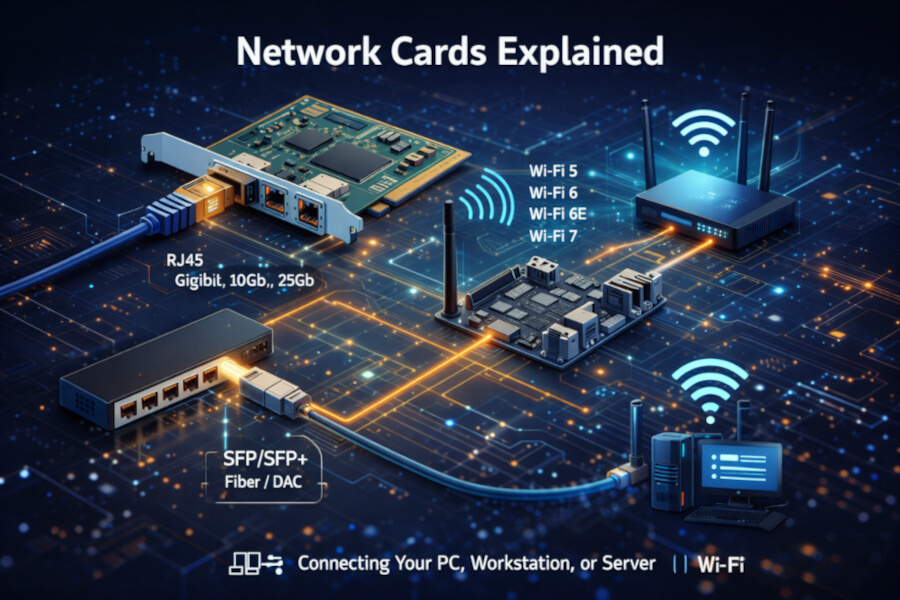
Network Cards Explained
A practical guide to Ethernet, SFP vs RJ45, Wi-Fi standards (including Wi-Fi 7), and how to choose the right networking
options for a custom-built PC, workstation, or server.
Basics
What Is a Network Card (NIC)?
A network card—also called a Network Interface Card (NIC)—is the hardware that connects your computer,
workstation, or server to a network. That network can be wired (Ethernet) or wireless (Wi-Fi),
enabling access to the internet, shared storage, other PCs, and business services.
Wired Networking
What Is Ethernet?
Ethernet is the most common wired networking standard. It is stable, low-latency, and typically faster
than Wi-Fi—making it the preferred choice for servers, workstations, virtualization, NAS/file transfers, and AI workloads.
Compatibility reminder: A faster network card won’t help if your switch, router, cabling, or storage
can’t support the same speed.
RJ45 Ethernet (Copper)
RJ45 is the standard “Ethernet jack” used with Cat5e/Cat6/Cat6A cables. It’s widely supported and easy to deploy.
- 1GbE: Standard for most homes and offices
- 10GbE: Great for NAS/file transfers, virtualization, and shared storage workflows
- 25GbE: High-performance networking for advanced workstation/server environments
SFP / SFP+ / SFP28 (Fiber or Direct Attach)
SFP ports use removable transceivers. They can run over fiber (longer distance) or DAC cables
(short, high-speed copper links).
SFP
Commonly used for 1Gb connections
SFP+
Typically used for 10Gb connections
SFP28
Used for 25Gb connections
Why use SFP?
Flexibility, longer runs, and reduced electrical interference
Caution: SFP networking requires the right transceivers and a compatible switch.
Always confirm the exact SFP standard and supported speeds before selecting SFP-based networking.
Wireless Networking
What Is Wi-Fi?
Wi-Fi is wireless networking that connects devices without Ethernet cabling. It is convenient for general
use and for systems where wiring isn’t practical, but performance can vary based on distance, walls, interference, and the
quality of your router or access point.
Why Some Motherboards Include Wi-Fi
- Convenience for home and office desktops
- Cleaner installs when Ethernet cabling is difficult
- Useful as a backup network path
Why Many Servers Do Not Include Wi-Fi
- Ethernet is typically faster, lower latency, and more consistent
- Server environments prioritize uptime and predictable performance
- Wireless is more susceptible to interference and signal variation
- Security policies often restrict wireless networking in server deployments
Wi-Fi Standards (and Why They Matter)
- Wi-Fi 5 (802.11ac): Reliable for general use
- Wi-Fi 6 (802.11ax): Faster and better in crowded environments
- Wi-Fi 6E: Adds 6GHz support for less congestion (requires 6E-capable router/AP)
- Wi-Fi 7 (802.11be): Designed for higher throughput, lower latency, and better handling of multiple devices in busy networks (requires Wi-Fi 7 router/AP to see full benefit)
Caution: Wi-Fi speed and stability depend on your router or access point. To get the
benefits of Wi-Fi 6/6E/7, make sure your wireless infrastructure supports the same standard (and is positioned well for coverage).
Advanced Use
Why Would You Want Multiple Network Cards?
Multiple network interfaces can improve performance, security, and reliability—especially for servers and advanced workstations.
- Traffic separation: keep storage, management, and internet traffic on different networks
- Virtualization: dedicate ports for VMs, containers, or lab environments
- Link aggregation: combine ports for more bandwidth (requires compatible switch configuration)
- Redundancy/failover: maintain connectivity if a cable, port, or switch fails
- Dedicated backup network: keep backups from competing with normal work traffic
Tip: If you’re upgrading to 10GbE or 25GbE, confirm your switch ports, cabling, and storage throughput
can actually take advantage of the speed increase.